



How to use Rally
How to use Rally, from setup to the final.
The full organizer path: create the tournament, pick a format, add your teams, set up the day, launch, place the matches, follow it live, print it, then run it again without rebuilding everything.
Nine steps, each with the screen you will actually see and the thing most likely to stop you. Budget about fifteen minutes for a first tournament.
1
Pick a starting point
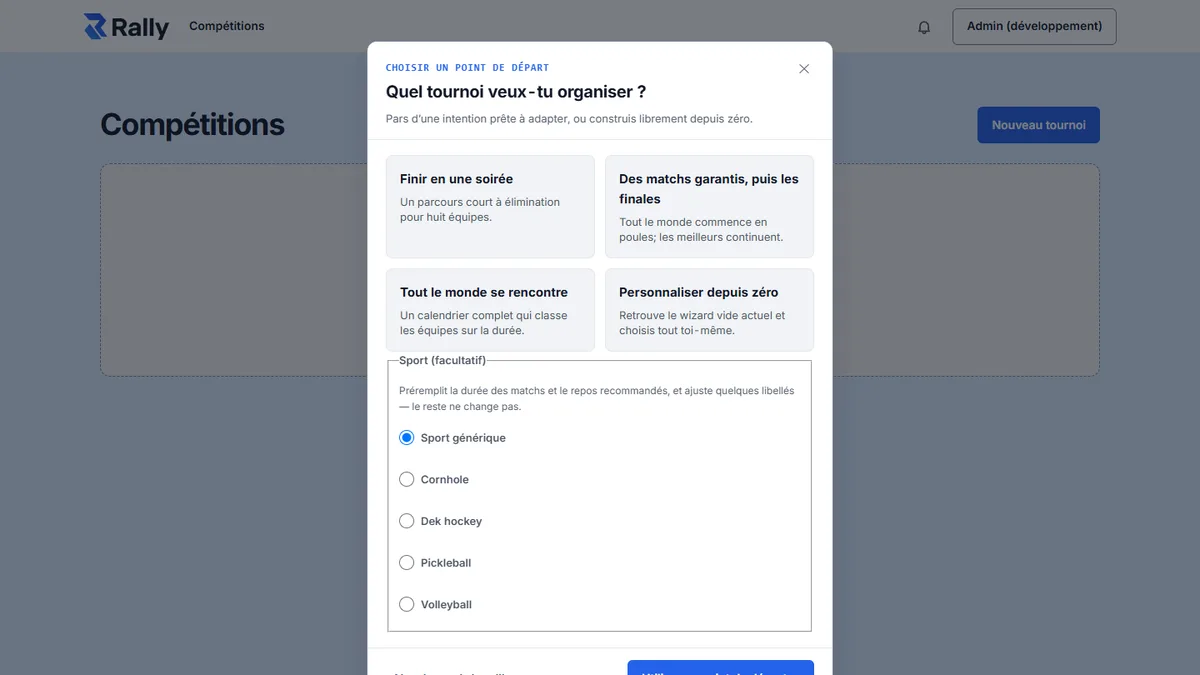
Rally opens on a question — what kind of tournament are you running? — and four possible answers.
“Finish in one evening”, “Guaranteed games, then playoffs”, “Everybody plays everybody”, “Start from scratch”: none of these four starting points decides anything permanently. They prefill the format and the settings of the steps that follow, and you stay free to change them.
The same dialog offers a sport: generic, cornhole, dek hockey, pickleball or volleyball. It is optional, and it mostly matters later — it is what prefills the average match length and the minimum rest between two games, labelled “Source: recommended for this sport” so you know where the number came from.
Take the starting point closest to the evening you actually have, not the most ambitious one. Starting from scratch stays available, and the next step can undo any of these choices.
2
Choose the format
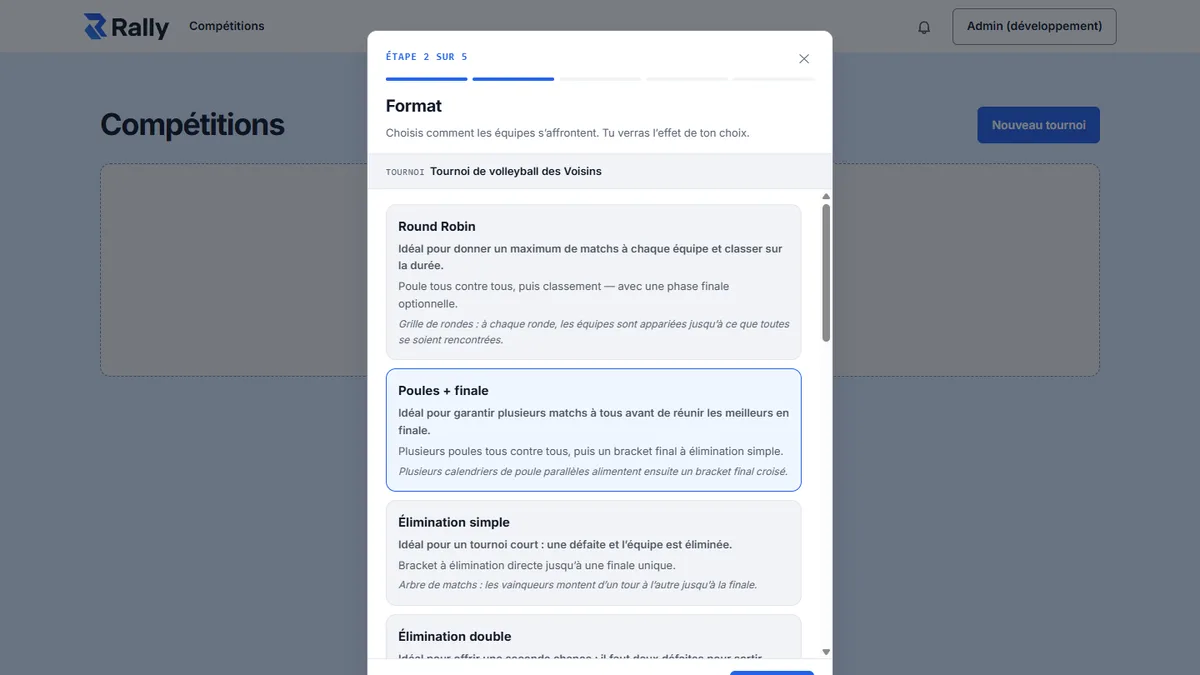
Step 2 of the wizard lines up the five formats and explains each in a sentence. This is the step everything else follows from.
Round robin, pools plus playoffs, single elimination, double elimination, Swiss system. Beside the format sit three settings that matter just as much: how seeds are placed, whether there is a third-place game, and score approval — whether a score entered by a scorekeeper waits for your confirmation before it counts.
A format with a knockout stage, such as pools plus playoffs, asks for two more numbers: how many pools, and how many teams qualify from each. In the screenshot, two pools with two qualifiers each produce a four-team semi-final.
Choose with the length of your day in mind, not just the number of teams. Twelve teams in a full round robin is 66 games; the same twelve split into two pools of six with a four-team knockout is 33 games — 30 in the pools and 3 in the knockout, exactly half, before an optional third-place game.
3
Add the teams
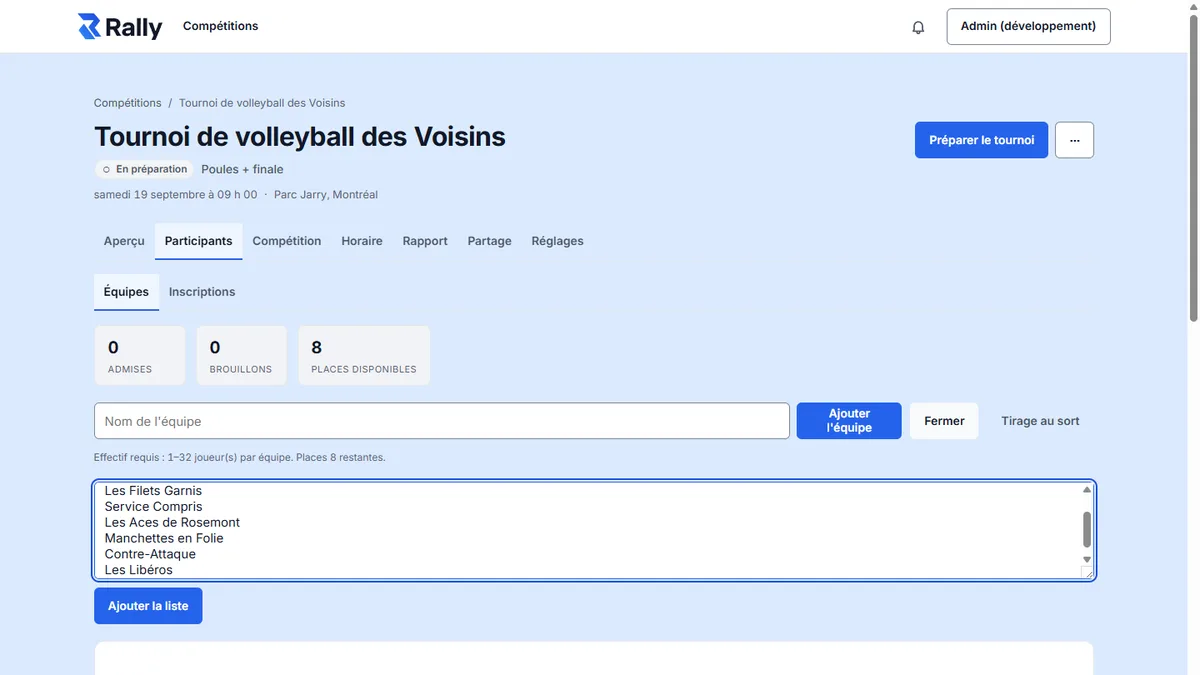
Step 3 asks who is playing: players only, teams only, or both — plus capacity and roster size.
You set a minimum and a maximum roster per team, and a capacity for the tournament. The rest is data entry: bulk entry takes one team per line, which turns eight teams into eight lines pasted from a group chat or a spreadsheet.
Players can also arrive on their own, without an account, through the invitation link in the Share tab. Each request then waits for your approval — you keep control of who gets in, even once the link is circulating in a group.
4
Set up the day: courts and slots
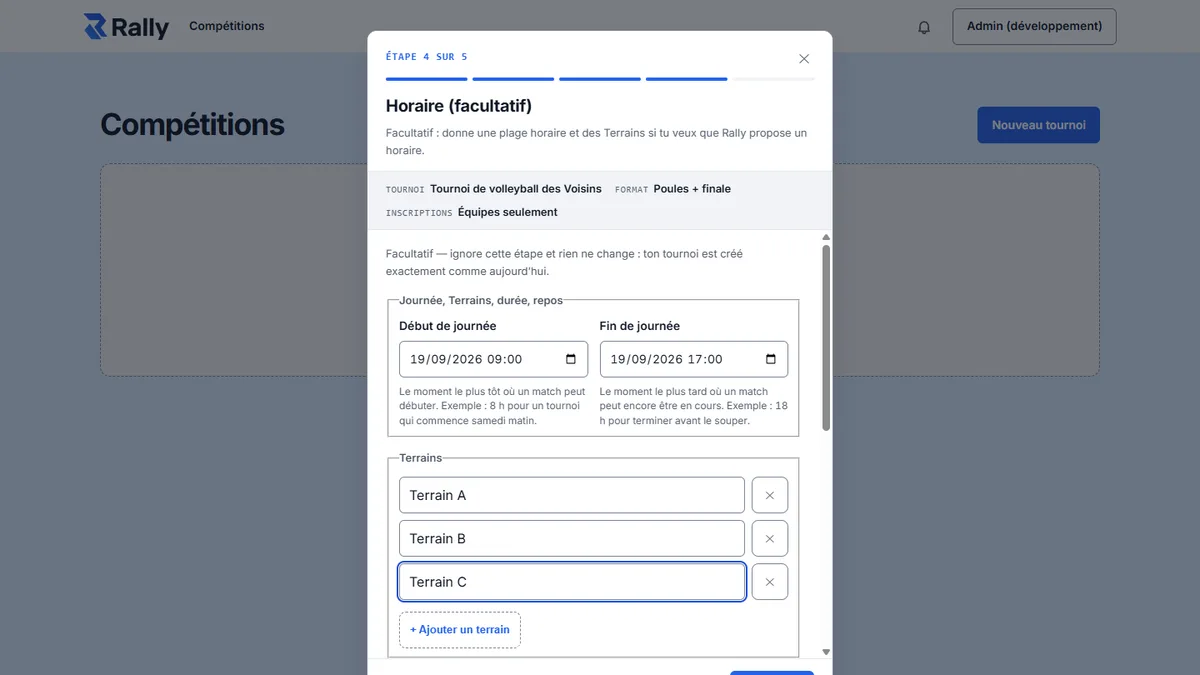
Step 4 is optional. It describes your real day: when it starts, when it ends, and across how many courts.
You declare a start and an end for the day, then your courts, named the way they are named on site — Court A, Court B, the far rink. Two settings complete the picture: the average length of a match, and the minimum rest between two games for the same team.
Both arrive prefilled from the sport picked at the very start, labelled “Source: recommended for this sport”. They are starting values, not a constraint: replace them with what you actually see at your venue.
Skipping this step is a legitimate choice. A Rally tournament runs perfectly well without slots — you then call matches out loud, round after round, from the Competition tab.
5
Launch the tournament
Step 5 is a summary, and the pre-launch state tells you in one word whether you can go.
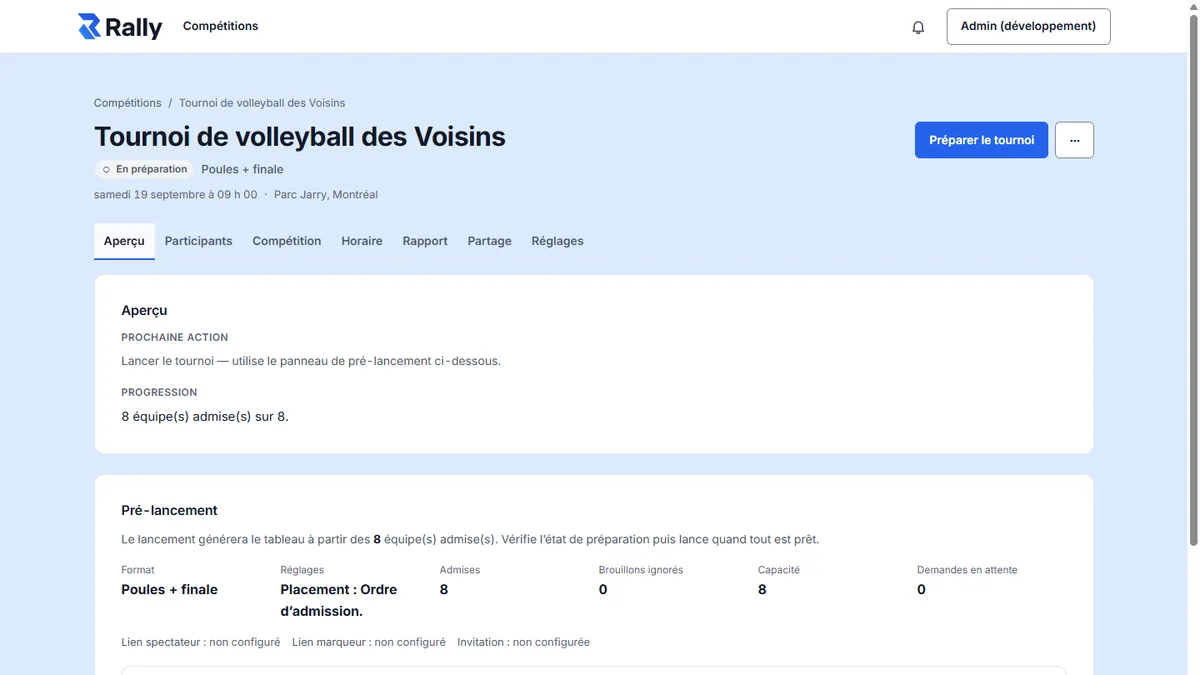
The preview counts the teams actually admitted — “8 of 8 teams admitted” in the screenshot — and shows a READY state once nothing is missing. It is the last screen where the format and the teams can still be changed.
Launching generates the first round of pairings from the chosen format. From there the Competition tab takes over: matches by round, standings, and a bracket as soon as a knockout stage begins.
6
Place the matches, then publish
Once the tournament is running, the Schedule tab places matches on your courts and inside your day.
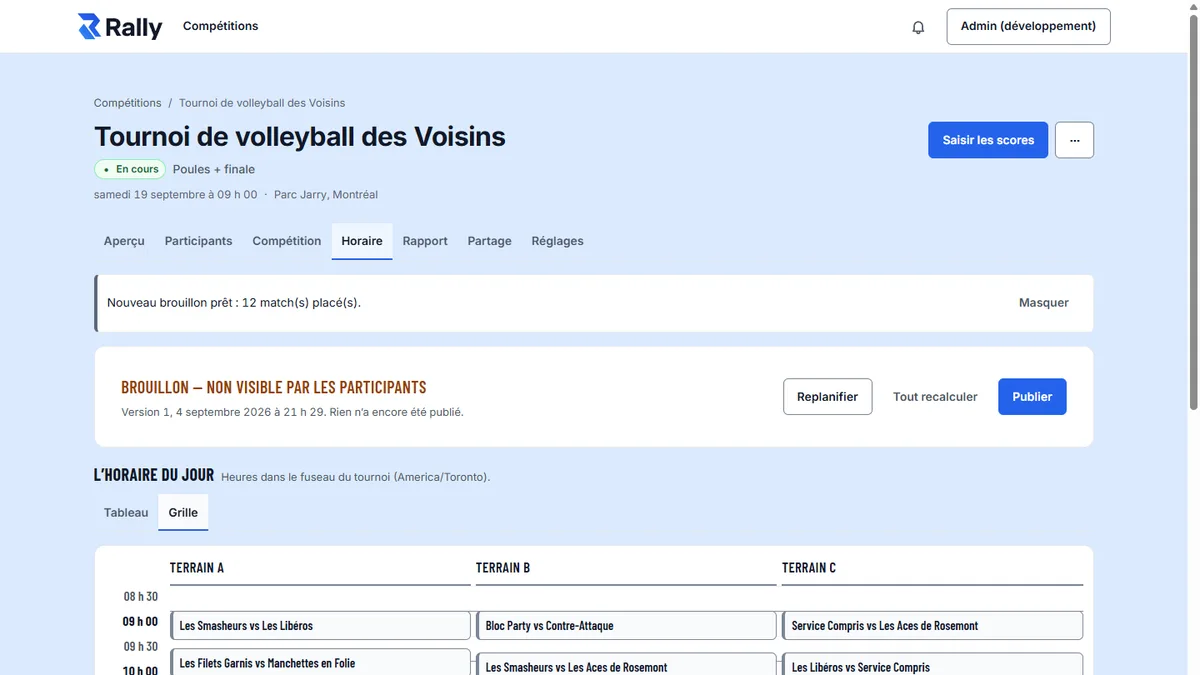
“Generate schedule” produces a draft — visible to you alone — with its diagnosis: every match has a slot, and no rule is broken. Two views coexist: a table, and a court-by-court grid showing the day as it will actually run, column by column.
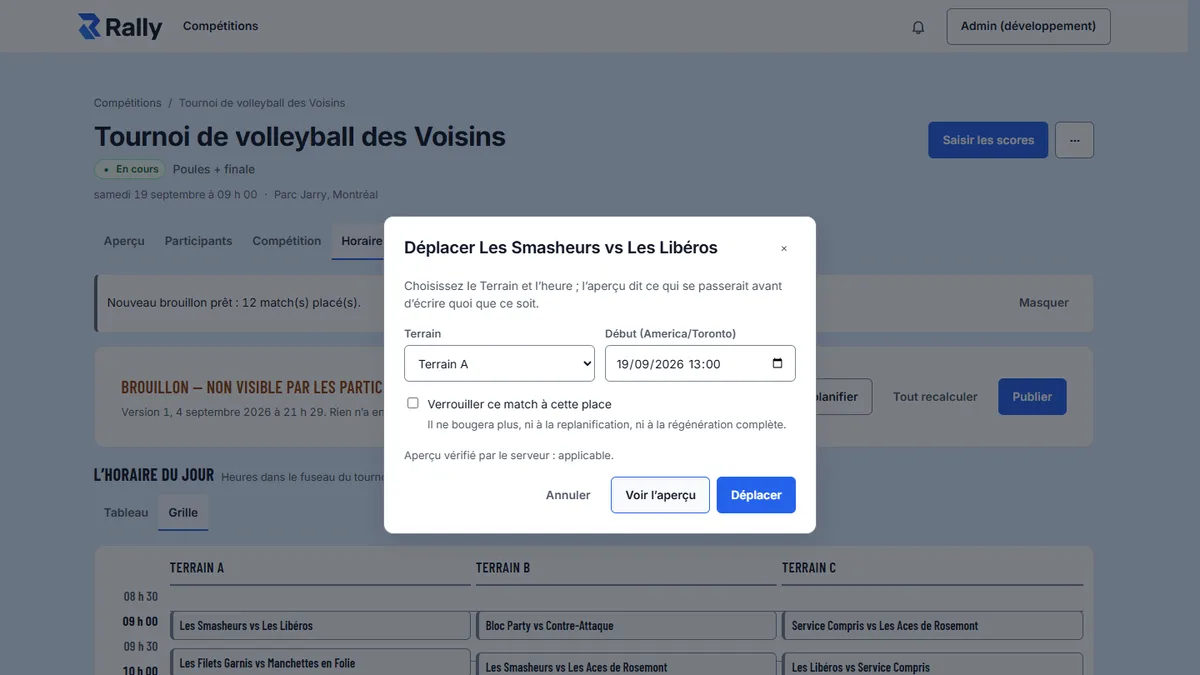
To move a match, click it, pick a court and a time, then preview. The server checks before anything is written and answers that the move applies. Confirming writes it. A checkbox locks the match to that slot, so a later recompute leaves it alone.
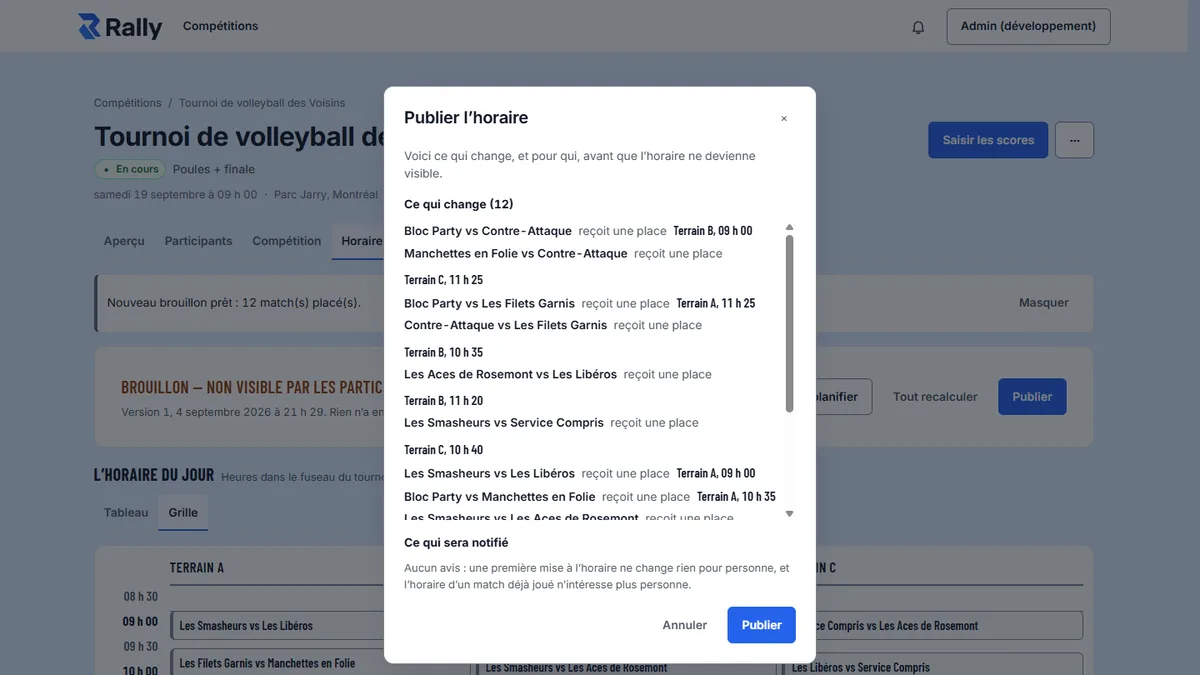
Publishing opens a confirmation that first lists what changes and who will be notified — twelve changes in the screenshot. Nothing goes out before that click. After publishing, the tab keeps Reschedule, Recompute everything, and Add to calendar (.ics).
7
Follow it live and share it
During the day, scores go in from Competition and are read everywhere else.
The Competition tab holds matches by round — with score entry and an optional “Start match” — the standings (played, won, drawn, lost, for, against, differential, points, with the scoring rule shown) and the bracket once the knockout stage begins.
The Share tab distributes the rest. The spectator link is a read-only address you can revoke or regenerate. The score-entry link hands scoring to a scorekeeper without handing over your account. The public page is a stable, indexable address, separate from the spectator link. Alongside them: the player invitation, co-organizers by email, and a “Powered by Rally” badge.
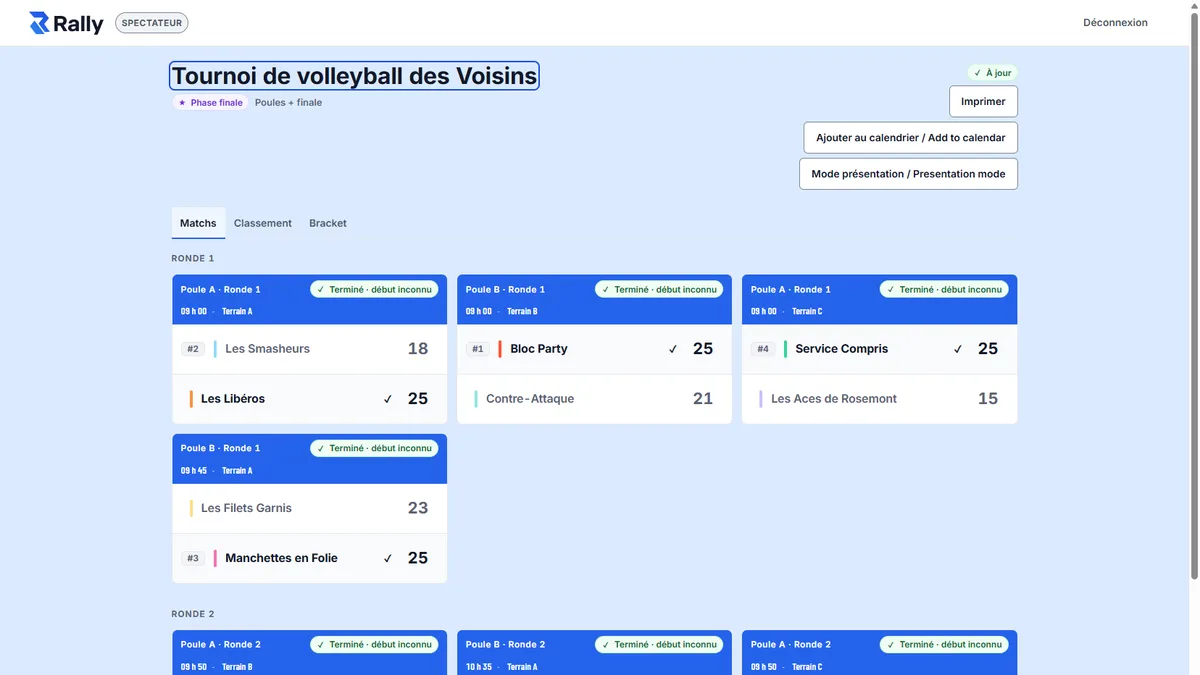
The spectator view shows finished matches with their scores, and carries three buttons that earn their place on site: Print, Add to calendar, and Presentation mode — the one you put on the gym screen.
8
Print the bracket
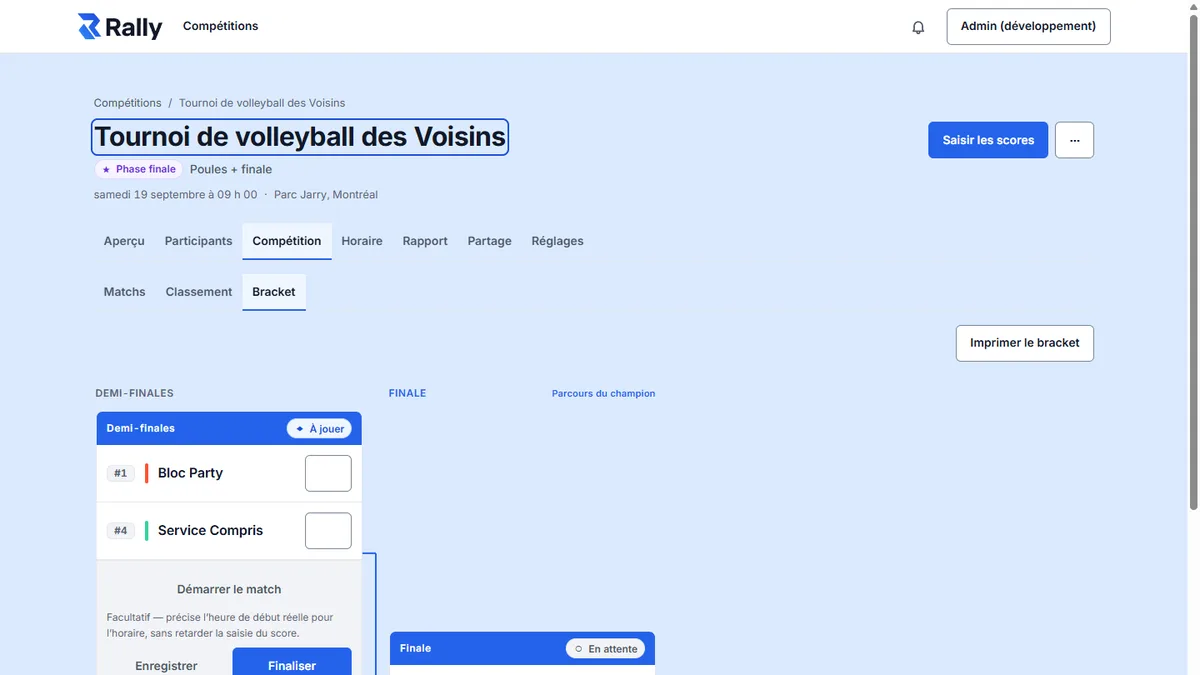
The bracket prints as it is being played, results included — not as a blank template.
The bracket section of the Competition tab appears as soon as a knockout stage begins, and carries a “Print bracket” button. A pure round robin has no such section: its round schedule prints from the tournament’s public page, the one spectators see, which carries its own print button.
Next to it, “Add to calendar (.ics)” serves the opposite need: instead of a sheet on the wall, each participant pulls their own games into their own calendar.
9
Run it again without rebuilding it
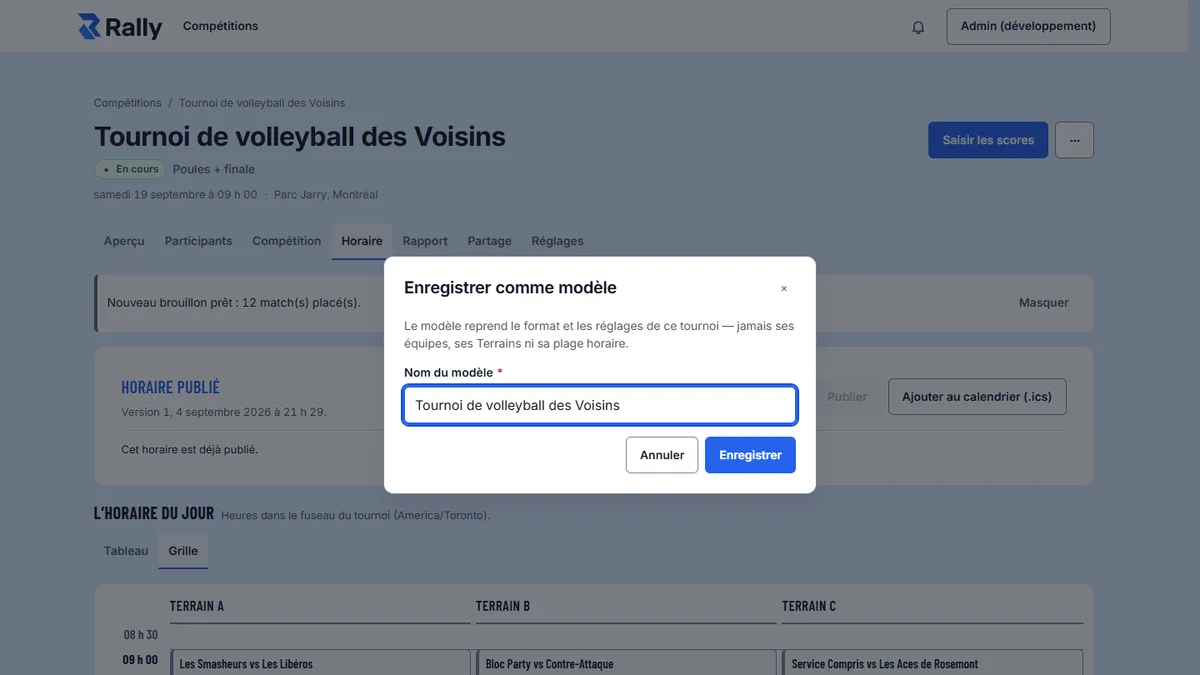
The tournament’s ⋯ menu carries the end-of-run gestures: duplicate, save as template, reset, delete.
“Save as template” keeps the format and the settings. Never the teams, never the courts, never the time window: a template describes how you play, not the edition you just finished.
“Duplicate now” does the same thing without going through a template, for when the next edition is already decided. “Reset” returns the tournament to its pre-launch state, and “Delete” removes it.
Frequently asked questions
How many steps does creating a tournament take?
Five. General information, format, registration and teams, day planning (optional), then a summary. Before step one, a dialog offers four starting points and a sport — both optional. They prefill what follows; they decide nothing permanently.
Why is one of my teams not counted?
Because it has fewer players than the tournament’s minimum roster. That minimum is set in step 3: at 1 or more, a team with no player stays a draft — not counted among admitted teams, not paired; at 0, the default for “Teams only”, an empty team is admitted and plays.
Do players see the schedule as soon as it is generated?
No. “Generate schedule” produces a draft only you can see, along with its diagnosis. Nothing reaches anyone until you press Publish, and that confirmation first lists what changes and who will be notified.
Can a match be moved after publishing?
Yes. Click the match, pick a court and a time, then “Preview”: the server checks before writing and tells you whether the move applies. “Move” confirms it. A checkbox locks the match to that slot, and the tab also offers Reschedule and Recompute everything.
What is the difference between the spectator link and the public page?
The spectator link is a read-only address you can revoke or regenerate at any time. The public page is a stable, indexable address, separate from that link. The Share tab also carries the score-entry link, the player invitation and co-organizers by email.
What does “Save as template” carry over?
The format and the settings. Never the teams, the courts or the time window: a template describes how you play, not the edition you just finished. The ⋯ menu also offers “Duplicate now” if you want to start again straight away.
Try it before you even create an account.
The bracket generator plays a whole tournament in the browser, no account needed. When the shape suits you, the real tournament runs the same formats.
Try the generator